


How to conditionally execute a custom action
Custom actions can be configured to run only in specific situations, such as only during install, only on certain operating systems, or only when a property has a given value.
This article uses a practical example to show how a custom action can be conditioned and why specific execution settings were selected.
1. Example scenario
In this example, the custom action named AddDefenderExclusionsWindowsServer is configured to add Windows Defender exclusions only when the package is installed on a server operating system.
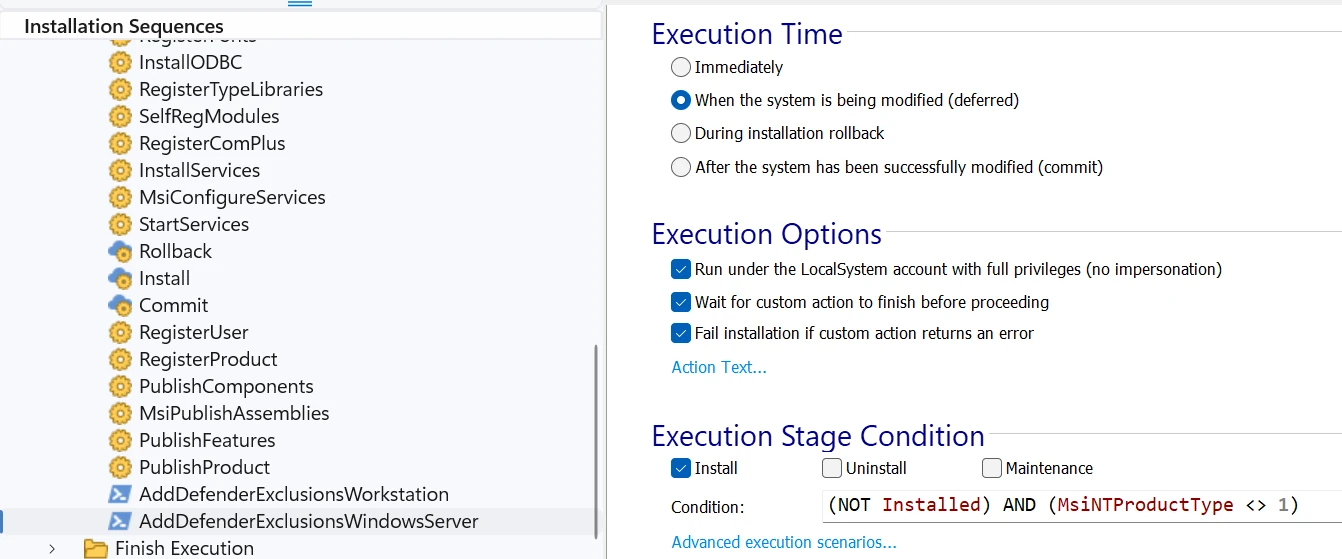
The custom action is configured with the following execution condition:
(NOT Installed) AND (MsiNTProductType <> 1)
This means the custom action will run only if both parts of the condition are true:
- NOT Installed
- The custom action runs only during a first-time installation.
- MsiNTProductType <> 1
- The custom action runs only on operating systems that are not workstation editions, such as Windows Server.
 In other words, this custom action runs only on a first-time install and only
on server operating systems.
2. Configure the execution condition
To condition a custom action, open its Properties page and edit the Condition field from the execution stage where the action is scheduled.
You can combine Windows Installer properties with logical operators to control when the action should run.
For this example, the condition ensures that the action does not run during maintenance or uninstall, and does not run on workstation operating systems.
3. Why deferred execution was selected
The custom action uses the When the system is being modified (deferred) execution time.
This is appropriate because the action performs a system-level change by modifying Windows Defender configuration. Deferred custom actions are commonly used when the custom action must apply changes to the target machine.
Use immediate custom actions mainly to evaluate data or set up execution
logic. Use deferred custom actions when the custom action actually changes the
system.
4. Why these execution options were selected
- Run under the LocalSystem account with full privileges (no impersonation)
- This option is useful when the custom action must perform machine-level changes that require elevated privileges, such as modifying Windows Defender settings.
- Wait for custom action to finish before proceeding
- This ensures the installation does not continue until the custom action is completed.
- Fail installation if custom action returns an error
- This makes the custom action a required step. If it fails, the installation stops instead of continuing in a partially configured state.
5. Result
With this configuration, the custom action is executed only in the intended scenario: during a first-time install, on a server operating system, while the system is being modified, and with the privileges required to apply the change.