


How to enable Updater Cloud in your setup
How to enable Updater Cloud in your setup
Updater Cloud lets you host the updates configuration file and the MSI or EXE packages used by Advanced Updater, without maintaining your own download server. In this tutorial, you will connect an installer project to Updater Cloud, publish a new application version, and verify that the installed application can retrieve the update.
 You need an Advanced Installer Account
with an active Updater Cloud subscription or an eligible trial. Sign in to your account from
Advanced Installer before proceeding.
This tutorial uses two Advanced Installer projects: an MSI/EXE setup project, which contains Updater.exe, and an Updates Configuration project, which defines and publishes the available application updates.
- 1. Enable Advanced Updater in your setup project
- 2. Connect the setup project to Updater Cloud
- 3. Build the new version of your application
- 4. Create an Updates Configuration project
- 5. Publish the update to Updater Cloud
- 6. Optional: Secure the updates configuration with a digital signature
- 7. Test the update from an installed application
- 8. Before and After Updater Cloud
- 9. See also
1. Enable Advanced Updater in your setup project
Open the installer project for the application you want to update. Go to the Updater view and enable .
Choose how the Updater will be launched after installation, such as through an application shortcut, a scheduled task, or your application. This determines when the installed application checks for updates.
In the Updater Cloud ribbon group, click to choose the cloud configuration that the Updater will use.
2. Connect the setup project to Updater Cloud
The selection dialog lists the updates configurations available in your Advanced Installer Account. Select the configuration you want to use and click .
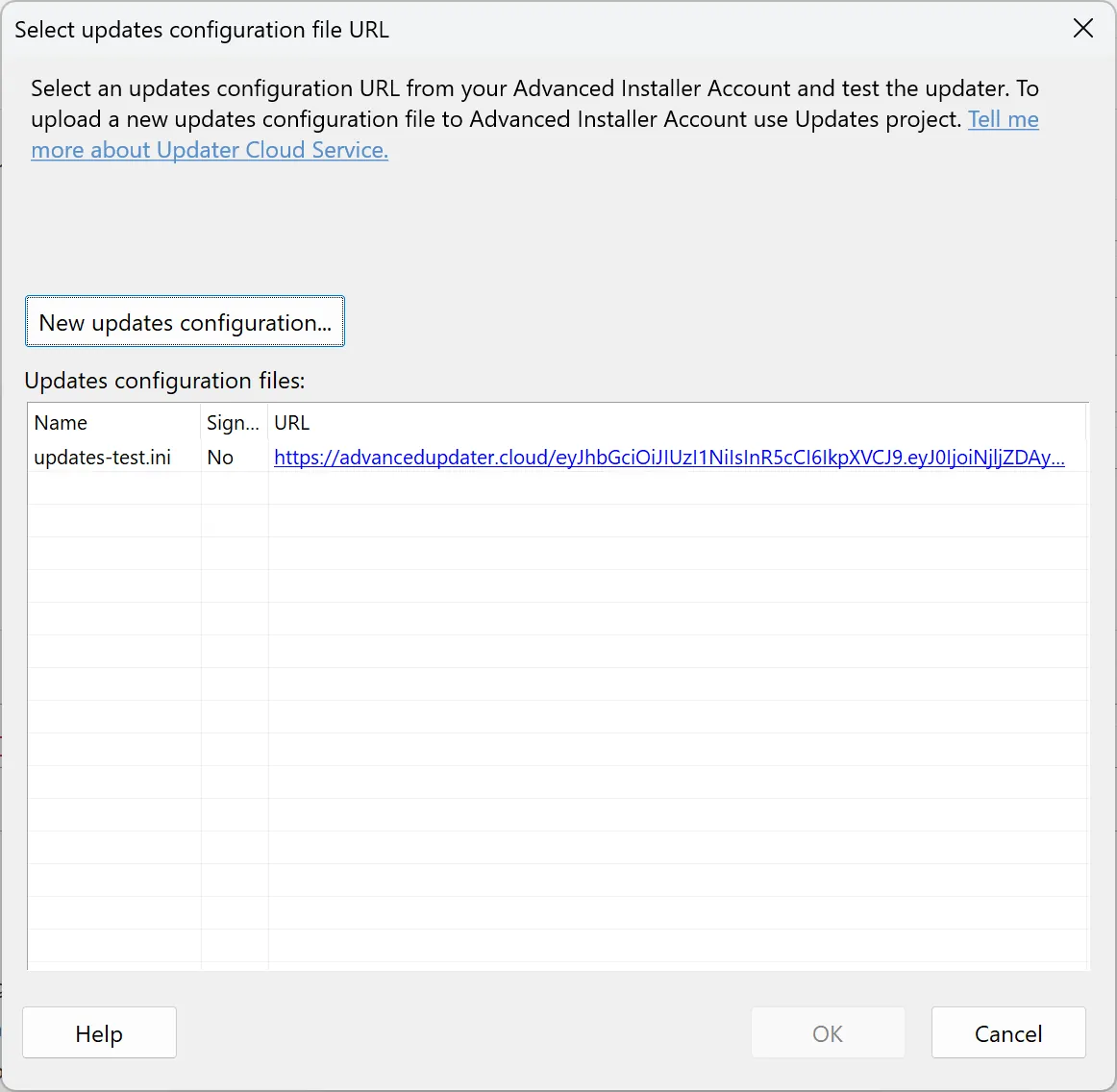
If this is your first time using Updater Cloud and the list is empty, create a new configuration and provide a recognizable name, such as your application name or MyApp-testing.
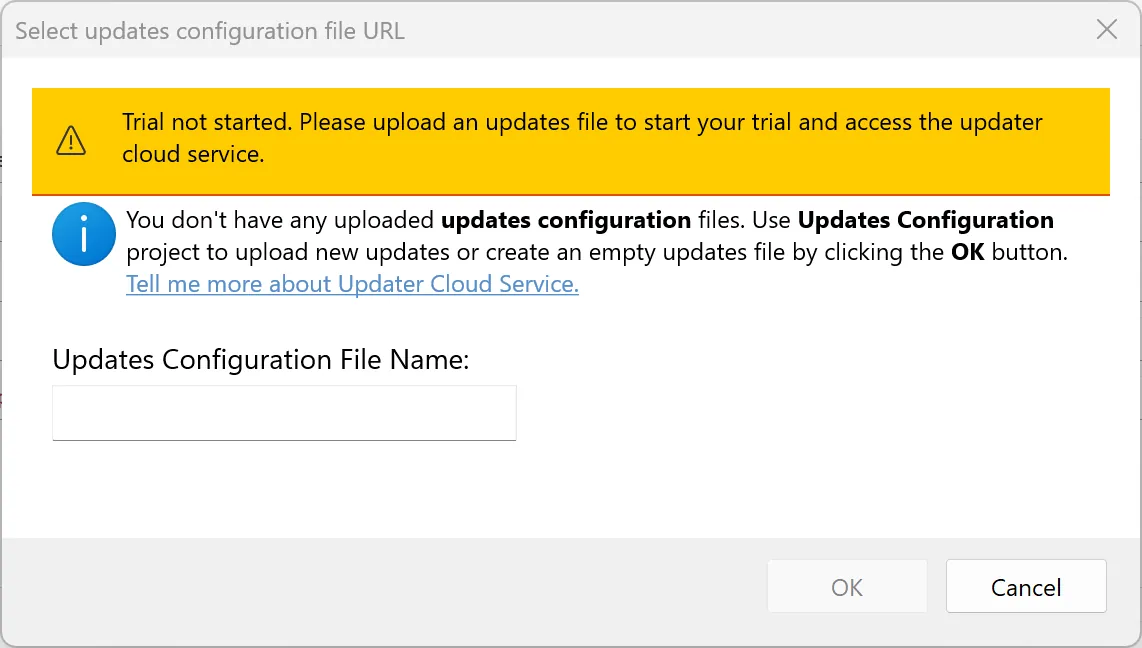
 A newly created cloud configuration may be empty. Connecting it to your setup project
does not publish an application update. You will publish the installer and updates
configuration in the following steps.
Save the setup project and build the installer. The resulting package includes the Updater configured to check the selected cloud location. Install this initial version on a test machine before proceeding.
3. Build the new version of your application
Update the application version in the installer project, make the required changes to your application, and build a new MSI or EXE package.
For example, if the test machine has version 1.0.0 installed, build version 2.0.0 as the update package.
Confirm that the update package contains the expected application version before
publishing it. The version of the setup package must match the update you intend to
release.
4. Create an Updates Configuration project
Create a new Updates Configuration project, or open an existing one. Use to add the version you want to publish.
In the update's tab, select the MSI or EXE package built in the previous step.
Review the update properties, including the displayed name and version. Save and build the Updates Configuration project to generate its updates configuration file.
Building the Updates Configuration project generates the configuration file locally.
Publishing it to Updater Cloud is a separate operation.
5. Publish the update to Updater Cloud
In the Updates Configuration project, click in the Updater Cloud ribbon group.
Select the cloud configuration used by your setup project, or provide a name when creating a new cloud-hosted updates file. Review the existing and new configuration content if you are replacing a previously published file, then confirm the upload.
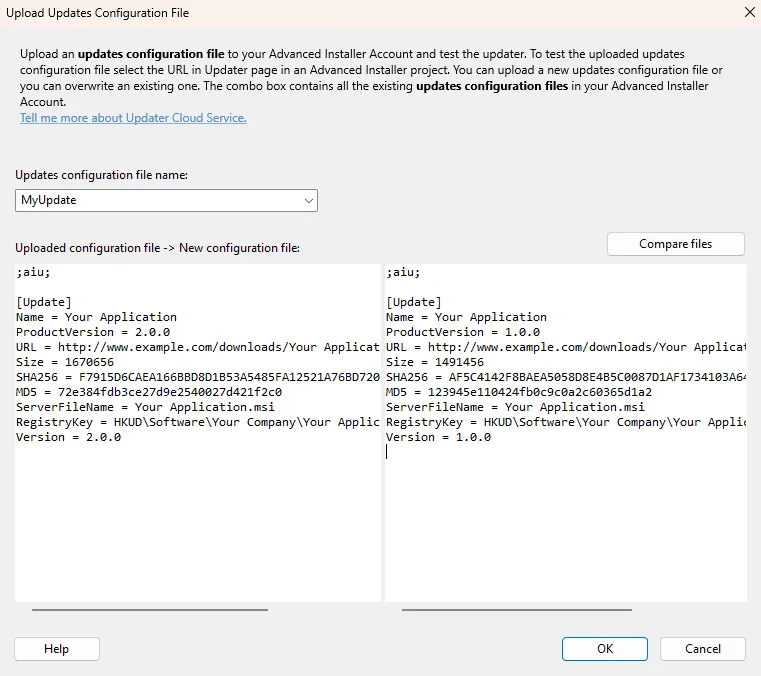
Advanced Installer uploads the updates configuration file and the referenced setup package to Updater Cloud. When digital signing is enabled for the updates configuration, a signed catalog (.cat) is uploaded as well.
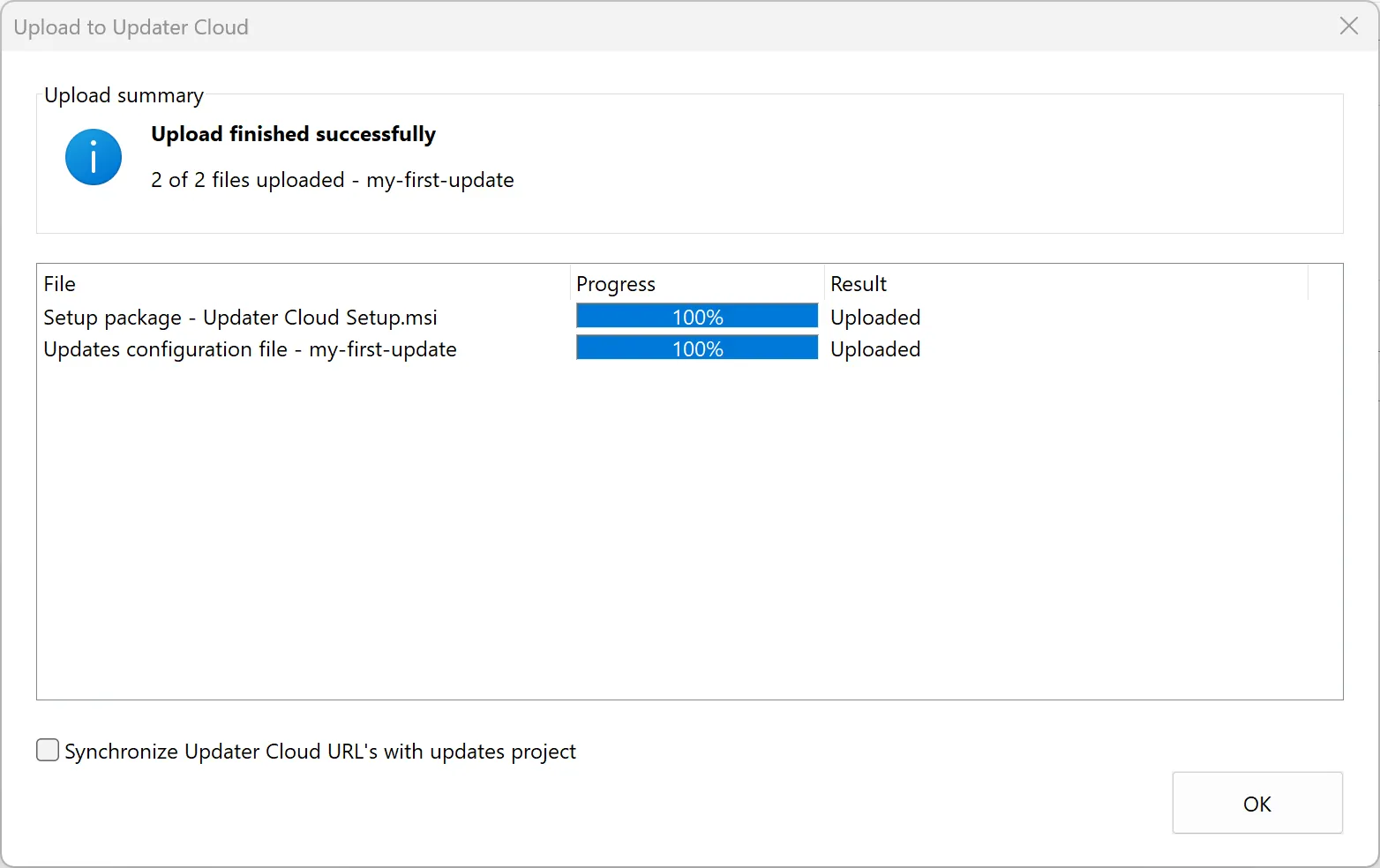
Check the result of the upload. Make sure the expected setup package and updates configuration were uploaded or are already available in the cloud. If an upload fails, resolve the failure before distributing the new release.
The updates configuration file URL is used by Updater.exe to
discover available updates. The setup package has a separate download URL, which points to
the MSI or EXE that will be downloaded and installed.
This is the overview dialog when uploading files to your Updater Cloud account:
6. Optional: Secure the updates configuration with a digital signature
If you digitally sign the Updates Configuration project, Advanced Installer can generate and upload a signed catalog (.cat) alongside the updates configuration file.
7. Test the update from an installed application
On a test machine, start with the older version of your application installed. Launch Updater.exe using your configured shortcut or update-check mechanism. For a manual check, you can start the Updater with the /checknow command-line option.
Confirm that the Updater retrieves the cloud-hosted updates configuration file, detects the newer version, downloads the intended MSI or EXE package, and completes the installation.
Finally, verify that the application version on the test machine matches the version you published.
8. Before and After Updater Cloud
Updater Cloud simplifies the process of publishing and hosting application updates by eliminating the need to maintain your own update server.
| Aspect | Without Updater Cloud | With Updater Cloud |
|---|---|---|
| File hosting | Host installer packages and updates configuration files on your own server. | Managed cloud hosting for installer packages and updates configuration files. |
| Publishing | Manually upload the required files to your web server. | Publish directly from Advanced Installer using the Updates Configuration project. |
| Download URLs | Manually configure and maintain the URLs for the updates configuration file and installer packages. | Automatically generated and configured URLs for cloud-hosted updates and installer packages. |
| Server maintenance | Maintain your own hosting infrastructure, server availability, and SSL/TLS certificates. | No hosting infrastructure to maintain. Updater Cloud handles hosting. |
| Signed catalogs | Manually upload and host the signed catalog file when digitally signing the updates configuration. | Automatically upload the signed catalog (.cat) when publishing signed updates. |
The update mechanism remains unchanged. The Updater.exe continues to check for available updates, download the appropriate installer package, and install it. The difference is that Updater Cloud handles hosting the required files, removing the need to maintain a separate update server.
9. See also
For more information about configuration, signing, and publication options, see Updater Cloud Service and Updates Configuration project.