


Automating the Repackaging Process

When repackaging multiple applications, configuring and starting each capture manually can become repetitive. Advanced Installer Repackager can generate a PowerShell script or batch (.bat) file based on an existing repackaging session. These files can then be used as a starting point for automating future repackaging operations.
1. Enable script generation
The automation files are not generated by default. You must first enable the corresponding options from the Project Options tab. You can also configure additional Repackager options depending on your automation scenario.
 For unattended automation, disable both Prompt and wait before
installing packages and Prompt and wait after installing
packages. Otherwise, the Repackager will wait for manual input before
continuing the operation.
For unattended automation, disable both Prompt and wait before
installing packages and Prompt and wait after installing
packages. Otherwise, the Repackager will wait for manual input before
continuing the operation.
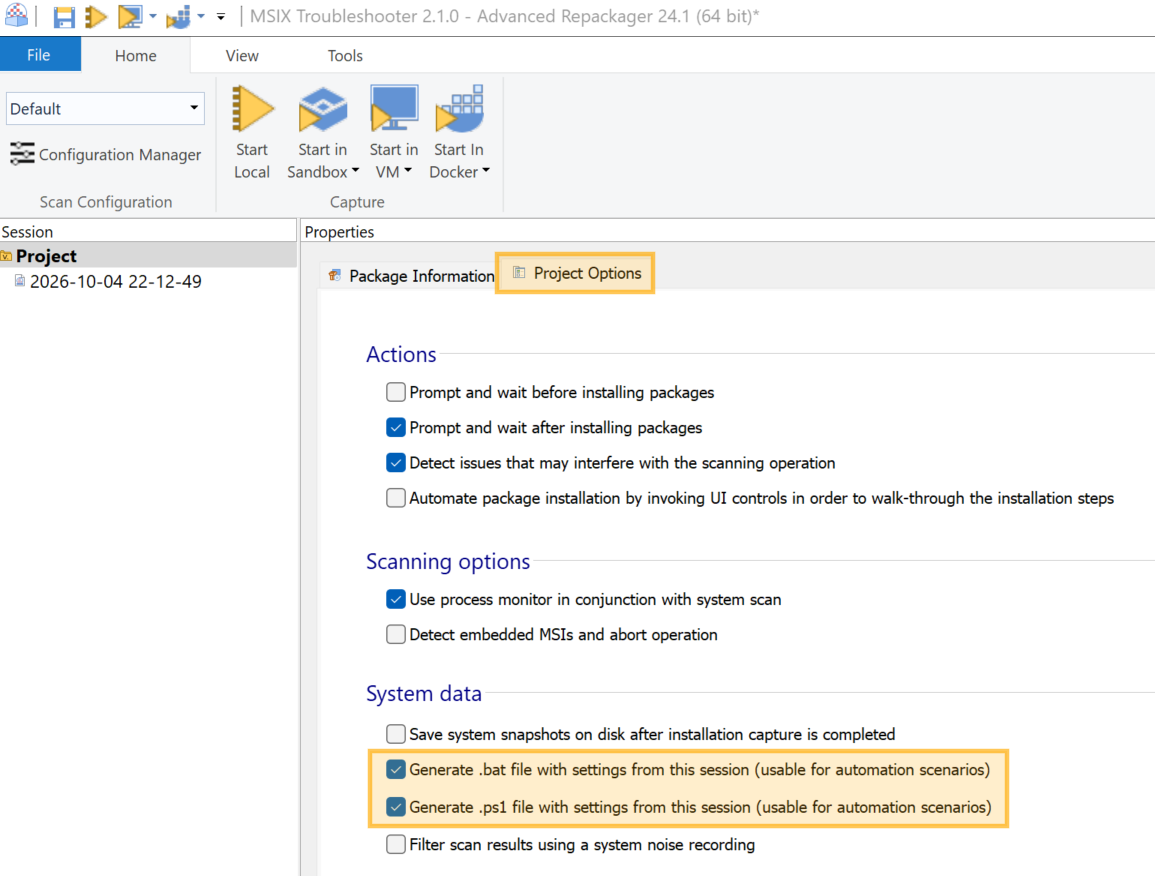
You must start and complete at least one repackaging session before the automation
files are generated. The resulting scripts contain the configuration used by that
repackaging session and can then be customized for additional applications.
Once the repackaging process is completed, the generated automation files are available on disk next to the .rpk file:
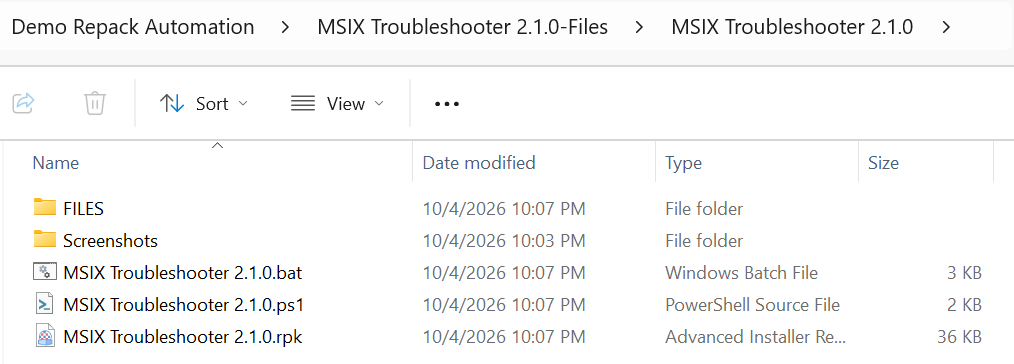
For example, let's analyze the content of the generated PowerShell script:
# This file was generated by Advanced Installer version 24.1.
# The licensed user that generated this file has complete rights of ownership over it.

# The file can be customized as per the user's requirements, for automating his repackaging processes.
# More details on how to customize this file:
# https://www.advancedinstaller.com/user-guide/repackager-cli.html

# Read more about Advanced Installer:
# https://www.advancedinstaller.com/

# Read more about the Repackager tool from Advanced Installer:
# https://www.advancedinstaller.com/repackager.html

$repackagerCLIPath = "C:\Program Files (x86)\Caphyon\Advanced Installer 24.1\bin\x64\RepackagerCLI.exe"

$packageParams = @{
	SetupPath = "D:\Demo Repack Automation\MsixTroubleshooter.msi"
	SetupCmdLine = ""
	ProductName = "MSIX Troubleshooter 2.1.0"
	ProductLanguage = "1033"
}

$repackagerParams = @{
	SessionMonitoring = "false"
	ProcessMonitor = "true"
	CreateNoiseFile = "false"
	PromptBeforeInstall = "false"
	CheckMachineState = "true"
	PromptAfterInstall = "false"
	SaveSnapshots = "false"
	DetectEmbeddedMsi = "false"
	Configuration = "Default"
	OutputPath = "D:\Demo Repack Automation\MSIX Troubleshooter 2.1.0-Files"
}

$vmParams = @{
	VmHostType = "8"
	UiAutomation = "false"
}

$cmdArgs = @{}
$cmdArgs += $packageParams
$cmdArgs += $repackagerParams
$cmdArgs += $vmParams

$commandLine = @(
 $cmdArgs.GetEnumerator() |
 ForEach-Object{
     $key = $_.Key
     $value = $_.Value.ToString()

     if ($value -ieq "true") {
         "/$key"
     }
     elseif(-not [string]::IsNullOrEmpty($value) -and $value -ine "false") {
         "/$key `"$value`""
     }
 }
) -join " "

Start-Process -FilePath $repackagerCLIPath -ArgumentList $commandLine -NoNewWindow -WaitThe generated script can be divided into four main sections:
- Package parameters - settings that are specific to the application being repackaged.
- At minimum, the SetupPath and ProductName values should be reviewed for every package. The SetupCmdLine parameter can also be used to pass silent installation arguments to the original setup.
- Repackager parameters - settings corresponding to the options selected in the Repackager Options tab.
- These settings can usually remain the same when multiple applications are repackaged using the same workflow. The OutputPath, however, should normally be unique for each application.
- Virtual machine parameters - settings that define the environment in which the capture is performed, such as Windows Sandbox, Hyper-V, or VMware.
- When the same repackaging environment is used for multiple applications, these parameters can generally be reused.
- Command-line execution - combines the previous parameter groups and launches RepackagerCLI.exe with the corresponding command-line arguments.
For reliable automation, each application should be captured in a clean and
predictable environment. When using a virtual machine, start each repackaging operation from
the same clean VM state or snapshot to prevent changes from a previously installed
application from affecting the next capture.
Whenever possible, configure the original application installer to run silently by specifying the required command-line parameters through SetupCmdLine. This reduces the need for manual interaction during the automated capture.
If the original installer cannot run silently, the Repackager can also use UI automation to interact with installer controls. However, installers with complex or unpredictable user interfaces may still require additional testing before being included in a fully automated workflow.
2. Adapting the Script for Multiple Applications
The generated PowerShell or batch file should be considered a starting point rather than a final automation solution. Once you have validated the configuration with one application, the script can be extended to process multiple installers while reusing the common Repackager and virtual machine settings.
For example, package-specific information can be separated from the script and supplied through an external data source such as a CSV file. Each entry could define values such as:
- SetupPath - path to the original installer;
- SetupCmdLine - silent installation arguments, when required;
- ProductName - name assigned to the repackaging session;
- ProductLanguage - package language;
- OutputPath - dedicated output folder for the captured application.
The PowerShell script can then import the CSV file, iterate over each application, populate the package-specific parameters, and start a separate Repackager operation for every entry.
Another approach is to use a drop folder. The automation script can enumerate the installer files available in a predefined directory and start a repackaging operation for each detected package.
Before processing a large set of applications, validate the automation with a small
number of representative installers. Different setup technologies may require different
silent parameters, prerequisites, restart handling, or other package-specific
configuration.
For production automation, you may also want to extend the generated script with logging, exit-code validation, input-file validation, and error handling. This makes it easier to identify which applications were successfully processed and which ones require manual review.
For the complete list of supported parameters, see the Repackager Command Line Interface.
3. Extending the Automation to Generate MSIX Packages
The following worflow explains the steps that can be automated through the script:

The automation process does not have to stop after generating the .rpk file. You can further extend the PowerShell script by using the Advanced Installer command-line interface to continue the packaging workflow and generate the final MSIX package.
For example, after a repackaging session is completed, the automation script can continue by:
- creating a new Advanced Installer project;
- importing the generated .rpk file;
- configuring the required project settings, such as digital signing;
- adding an MSIX build;
- building the project to generate the final MSIX package.
This means that the entire workflow, from processing the original installer to
generating the final MSIX package, can be automated. The generated Repackager PowerShell
script can therefore be used as the starting point for a more comprehensive application
packaging pipeline.
The exact automation workflow depends on your packaging requirements and infrastructure. For example, additional logic can be added for virtual machine snapshot management, package-specific settings, signing configuration, logging, validation, and error handling.
4. See also:
Repackager Command Line Interface
Automating the Repackaging Process of SCCM Applications in a Remote Virtual Machine