


Multiple Build Configurations

 The following article uses options that are available starting with the Professional edition and project type.
This tutorial will guide you through creating a project with multiple build configurations.
Let's suppose our product is a Windows application that needs to be distributed in three different configurations: Release, Debug, and MSIX.
- 1. Add your application files to the project
- 2. Create a new build configuration
- 3. Organize the installer into features
- 4. Add prerequisites and select the corresponding build
- 5. Configure build-specific settings
- 6. Build your project
- 7. Another example of using multiple build configurations
- 8. Video tutorial
1. Add your application files to the project
 Select “Files and Folders” from the
“Resources” menu in the left pane and add your application
files.
Select “Files and Folders” from the
“Resources” menu in the left pane and add your application
files.
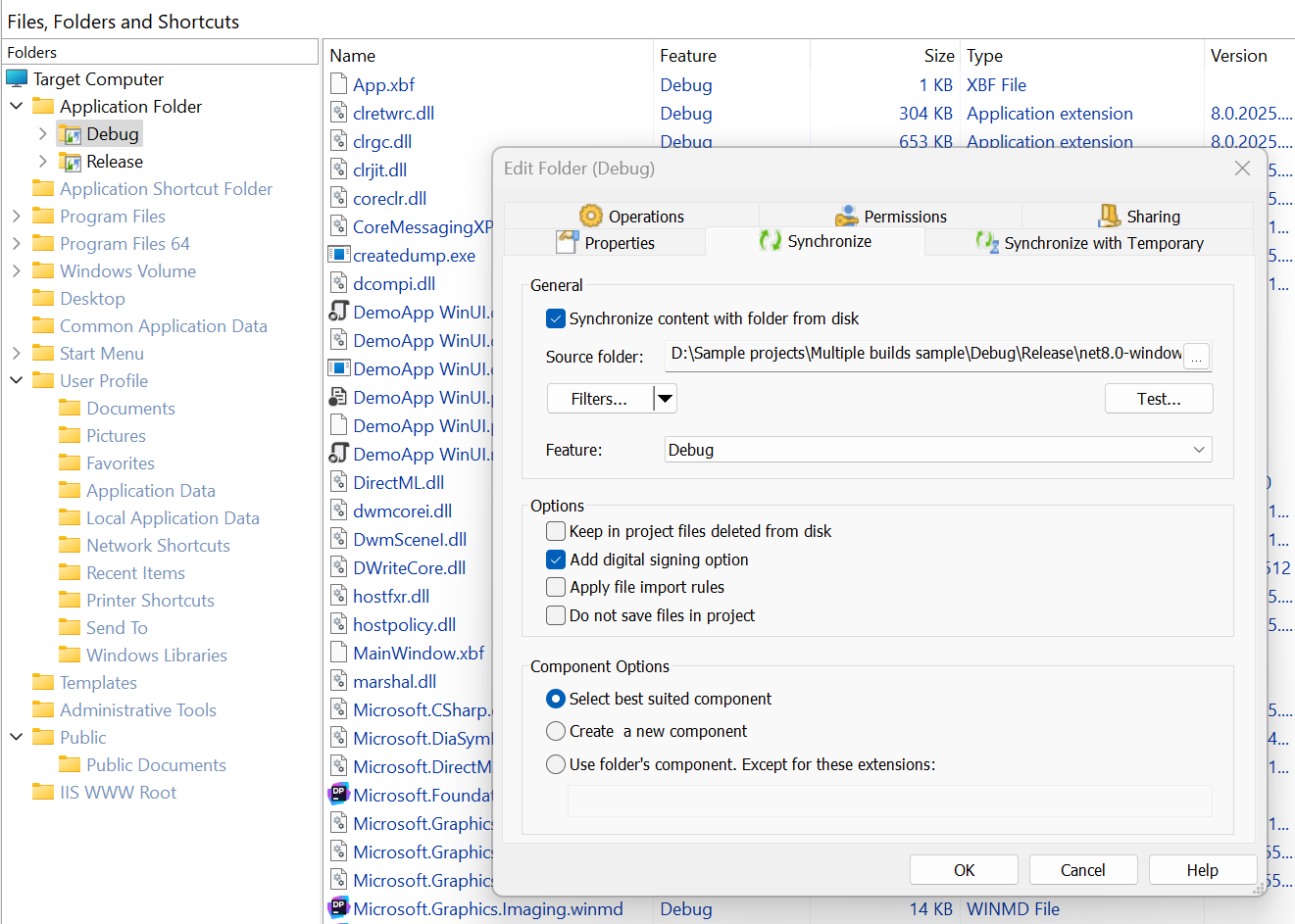
If the contents of the source folders may change, we recommend using the folder synchronization functionality. This way, the project will automatically reflect changes made to the source folders, while allowing you to assign the synchronized resources to the corresponding features.
2. Create a new build configuration
 Go to
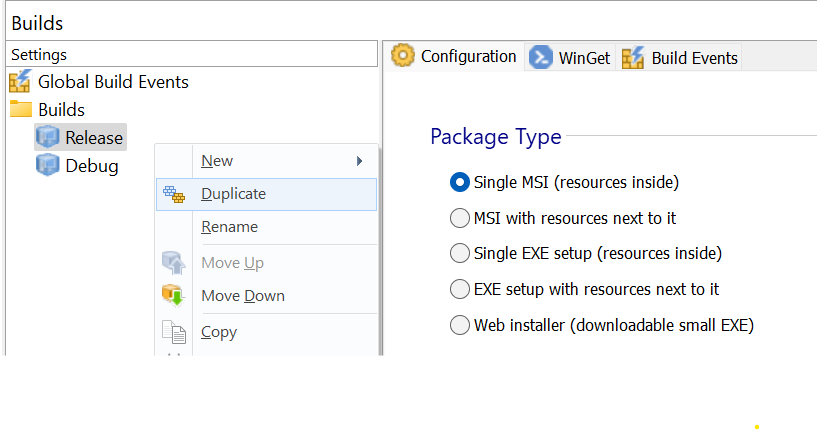
the “Builds” page from the left pane. Duplicate the existing build to
create a new build configuration that inherits the customizations made so far.
Go to
the “Builds” page from the left pane. Duplicate the existing build to
create a new build configuration that inherits the customizations made so far.
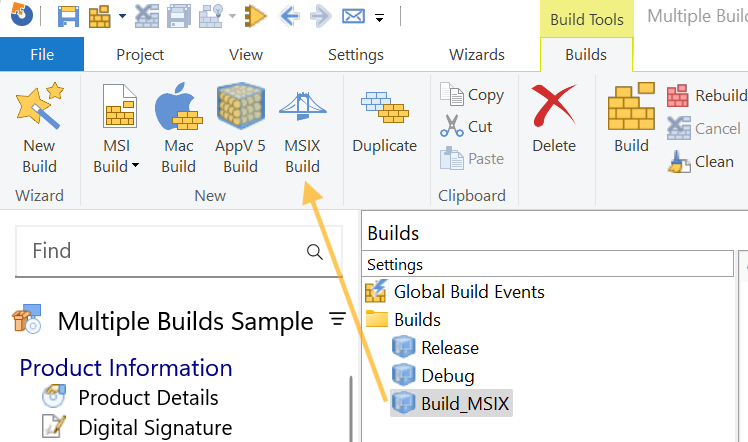
Next, add an MSIX build configuration:
3. Organize the installer into features
In the Organization view, you can assign features to their corresponding builds. Select a feature and, from its properties, specify the builds in which it should be included:
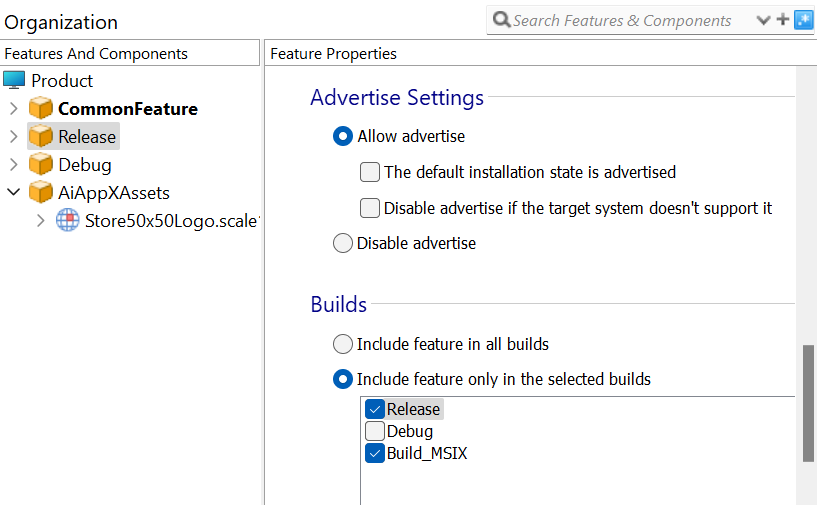
In our example, the MSIX build contains the Release binaries.
4. Add prerequisites and select the corresponding build
In the Prerequisites view, you can add the runtimes or other prerequisites required by your application and specify the builds in which they should be included:

5. Configure build-specific settings
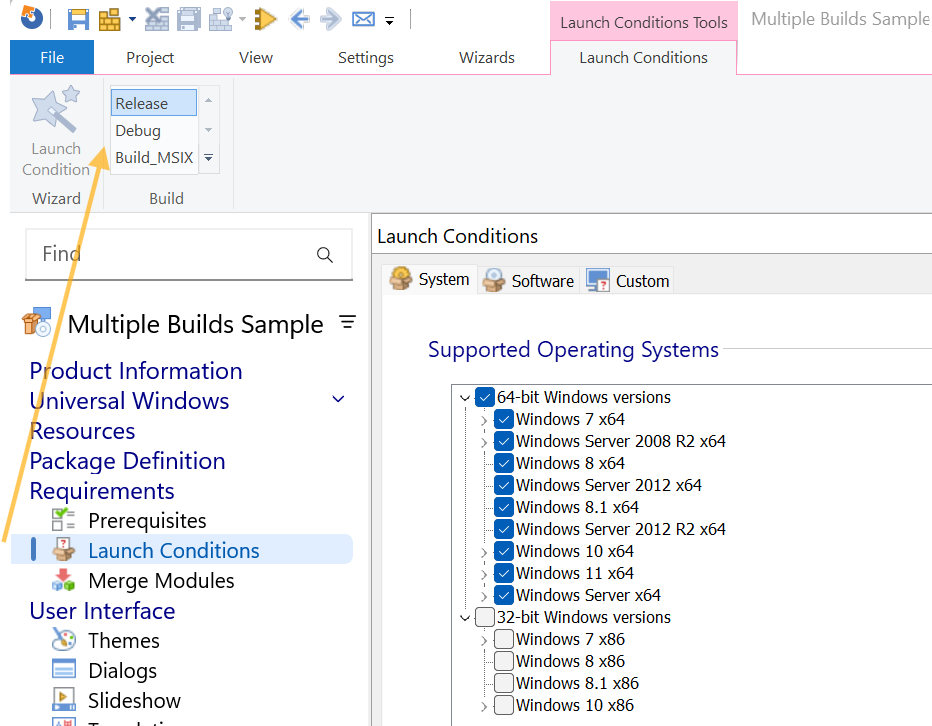
Some project settings can be configured independently for each build. For example, the Launch Conditions and Install Parameters views allow you to define build-specific settings:
6. Build your project
 You can build all configurations at once, or build only a specific
configuration by selecting it in the “Builds” view.
You can build all configurations at once, or build only a specific
configuration by selecting it in the “Builds” view.
7. Another example of using multiple build configurations
For another example of configuring multiple builds with different settings, see Create Web, Offline & Enterprise MSI within the same Advanced Installer project.